UPI Deposits, Tiranga
Clear answers on upi deposits for tiranga, checked against the live platform and updated when it changes.
What is UPI Deposits?
UPI deposits on Tiranga let you fund your gaming wallet instantly using the Unified Payments Interface, India's real-time payment network built and regulated by the National Payments Corporation of India (NPCI). Instead of entering card numbers or net-banking credentials every time you want to play, you authenticate with a single UPI PIN and the money moves directly from your linked bank account to your Tiranga wallet in seconds, without sharing any sensitive financial details with the platform itself.
Launched in 2016, UPI has grown into the dominant payment method across India, processing over 13 billion transactions per month as of 2025. When you choose UPI on tirangagameapp.com.co, you are using the same payment rail trusted by hundreds of millions of Indians every day for everything from grocery bills to large transfers. There are no hidden charges applied by Tiranga on standard UPI deposits, and the minimum deposit threshold is kept low so casual players and high-stakes users alike can top up exactly the amount they need.
How UPI Works Behind the Scenes
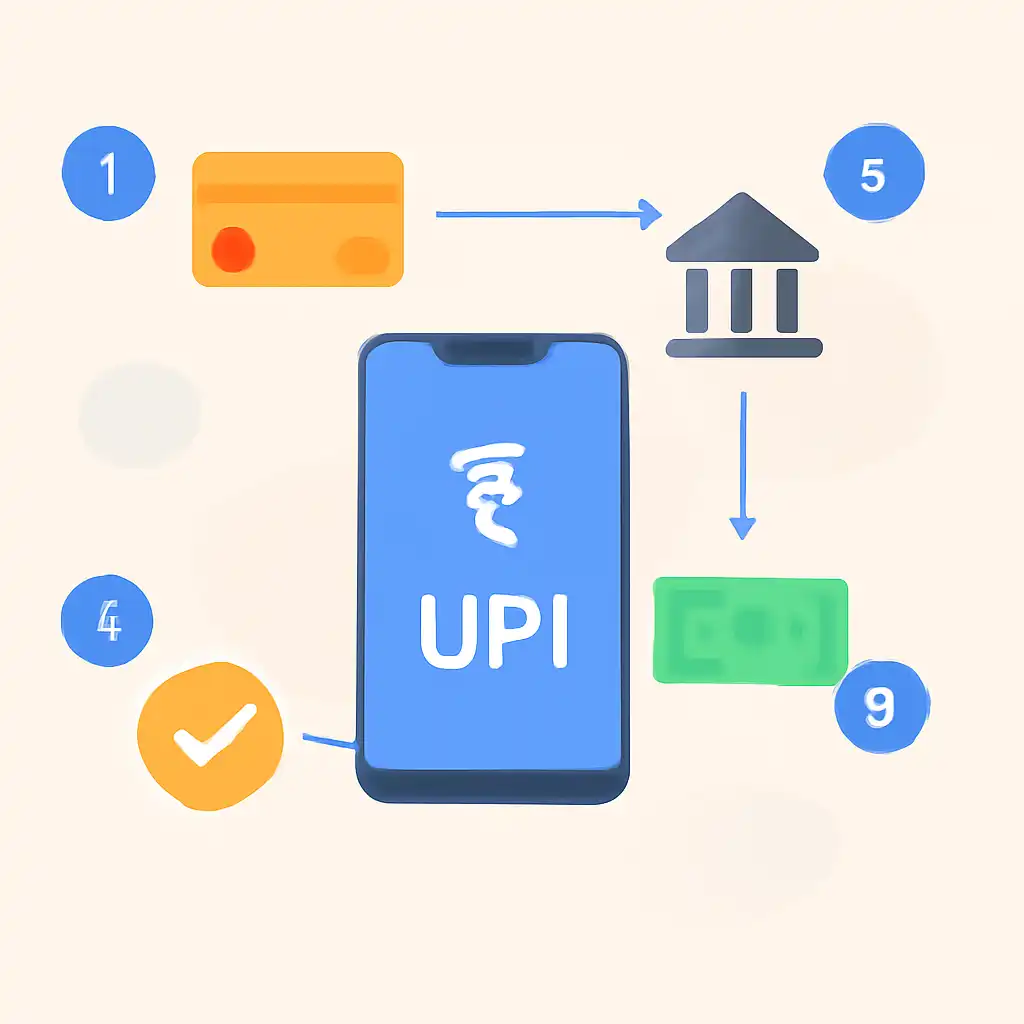
Every UPI transaction travels across three layers: your bank (the remitter), the NPCI switch, and the beneficiary bank (in this case, Tiranga's payment gateway partner). When you initiate a deposit on Tiranga, the platform sends a collect request to your registered VPA (Virtual Payment Address). Your UPI app receives this request, shows you the payee name and exact amount, and only releases the funds after you enter your PIN. The NPCI switch settles the transaction in under two seconds between the two banks, and Tiranga's backend receives a real-time callback confirming the credit.
This architecture means Tiranga never sees your bank account number, IFSC code, or PIN at any point. Your financial credentials stay entirely within the UPI ecosystem, a critical security advantage over older payment methods such as net banking, where you log in to your bank portal directly through a third-party redirect.
UPI Deposits vs Other Deposit Methods on Tiranga
Understanding how UPI compares to the alternatives helps you choose the right method for your situation:
- UPI vs Debit/Credit Card: Cards require you to enter a 16-digit number, CVV, and OTP on every transaction. UPI only needs your PIN, which you have already memorised. Card transactions are also subject to 1 to 2% bank charges on gaming platforms, while UPI deposits on Tiranga carry zero platform fee.
- UPI vs Net Banking: Net banking redirects you out of the Tiranga site into your bank's own portal, which can be slow and sometimes times out. UPI keeps the entire journey within your chosen UPI app, making it significantly faster and less likely to fail mid-transaction.
- UPI vs Bank Transfer (NEFT/IMPS): NEFT batches process every 30 minutes during working hours. IMPS is instant but requires knowing the beneficiary account number and IFSC. UPI does everything IMPS does, with just a VPA or QR code, and is available on a far more intuitive interface.
- UPI vs Digital Wallets: Paytm Wallet or Amazon Pay Wallet require you to first load money into the wallet from your bank, adding an extra step and sometimes carrying their own reload fees. UPI bypasses the intermediate wallet entirely and debits your bank directly.
Which UPI Apps Work on Tiranga?
Every NPCI-certified UPI application is compatible. The most widely used options among Indian players are:
- Google Pay (GPay): Available on Android and iOS; supports both collect requests and QR scanning. Known for near-instant notifications and a clean approval screen.
- PhonePe: Market-leading UPI app by transaction volume; especially popular for gaming deposits due to fast collect request delivery and a dedicated "Requests" inbox.
- Paytm UPI: Separate from the Paytm Wallet, when you choose UPI in Paytm, funds come directly from your linked bank, not your Paytm balance.
- BHIM (Bharat Interface for Money): The NPCI's own app; straightforward and lightweight. Ideal if you prefer a no-frills interface or have an older device.
- Amazon Pay UPI: Convenient if you already use Amazon and have a linked bank account; supports collect requests like any other UPI app.
- Bank-issued UPI apps: SBI YONO, HDFC MobileBanking, ICICI iMobile Pay, Axis Mobile, Kotak 811, all carry a native UPI module that works with Tiranga deposits.
You are not restricted to one app. If a collect request is not appearing in GPay, open PhonePe, the same request is visible in all apps linked to your bank account.
UPI Deposits Step by Step
Follow these steps to complete a tiranga UPI deposit from scratch. The entire process takes under two minutes on a stable connection. Each step below includes what to look for on screen and what to do if something does not go as expected.
- Log in to your Tiranga account at tirangagameapp.com.co using your registered Indian mobile number. Enter the OTP delivered via SMS within 30 seconds. If the OTP is delayed, tap "Resend" after the countdown expires, do not attempt to log in more than three times in quick succession or your account may be temporarily locked for security reasons.
- Open the Wallet section. Once on the home dashboard, look for the wallet icon in the top-right corner, it typically displays your current balance. Alternatively, tap the hamburger menu and navigate to Account → My Wallet. The wallet panel shows your available balance, bonus balance, and a full transaction history.
- Tap "Add Funds" or "Deposit." This green button is displayed prominently inside the wallet panel. On smaller screens (below 5.5 inches) you may need to scroll down slightly to see it below your balance summary. Tapping it opens the deposit flow.
- Select UPI as your payment method. Tiranga lists available deposit channels, UPI is displayed first because it is the most popular among Indian players. Tap the UPI tile to proceed. You will see the UPI logo and a short description confirming zero platform fee.
- Enter the deposit amount in INR. Tiranga offers quick-select buttons at common amounts (₹100, ₹500, ₹1,000, ₹2,000, ₹5,000, ₹10,000). For a custom figure, tap "Other Amount" and type it in. Note the minimum and maximum deposit limits displayed on this screen, they are subject to periodic updates and may vary by account tier.
-
Choose how to authenticate: VPA entry or QR scan.
- VPA entry: Type your UPI ID in the format mobilenumber@upi, name@oksbi, name@ybl, name@paytm, etc. Tiranga validates the VPA in real time and shows your registered name before you confirm, always verify this name matches your expectation before proceeding.
- QR scan: Tap "Show QR Code" to generate a dynamic, one-use QR linked to your exact deposit amount. Open your UPI app's scanner and point it at the screen. The amount is pre-filled; you only need to enter your PIN.
- Approve the payment in your UPI app. If you used VPA entry, Tiranga sends a collect request to your UPI app. Open PhonePe, GPay, or your bank's app, you will see a notification or an item in the "Pending Requests" section. Tap it, review the payee name and amount one final time, then enter your 4- or 6-digit UPI PIN. Never enter your PIN on any screen other than your trusted UPI app.
- Wait for the Tiranga confirmation screen. Within 5 to 30 seconds a green tick appears on the Tiranga deposit page alongside a 12-digit UPI Transaction Reference Number (UTR / RRN). Screenshot or note this reference. Your wallet balance in the top bar updates simultaneously. If the screen shows a spinner for more than 90 seconds, check your bank SMS, if money was debited, contact Tiranga support with the UTR before attempting a second deposit.
What to Do if a Step Fails
- VPA validation fails ("VPA not found"): Re-check the spelling. Common errors include using a full stop instead of @ or forgetting the bank handle suffix (e.g., @okhdfcbank vs @oksbi). Open your UPI app → Profile to copy your exact VPA.
- Collect request never arrives in your UPI app: Wait 60 seconds, then pull-to-refresh inside the app's Requests tab. If still absent, verify the VPA you entered belongs to the same bank linked in the UPI app.
- Payment declined by bank ("Transaction failed"): Your daily UPI limit may be exhausted. Most banks set a ₹1 lakh per-day default. Check your limit in your banking app under UPI settings and increase it if needed, or use a second bank account.
- Tiranga shows "Pending" after bank debits money: Do NOT deposit again. Note the UTR from your bank SMS and raise a support ticket. Funds are reconciled and credited within 24 hours in virtually all cases.
UPI Deposits on Mobile
The vast majority of Tiranga players deposit via smartphone. The mobile experience on tirangagameapp.com.co is optimised for one-thumb use with large tap targets, auto-filled amount buttons, and deep-linking directly into your UPI app. A few device-specific details, however, can make or break a smooth deposit, here is everything you need to know by platform.
Using the Tiranga Mobile Site (Browser)
Open Chrome (Android) or Safari (iOS) and navigate to tirangagameapp.com.co. The site is a responsive PWA, it behaves like a native app, loads quickly on 4G or Wi-Fi, and does not require a separate APK download to make deposits. The deposit page detects your operating system and presents a "Pay via UPI App" button in addition to the manual VPA field. On Android, tapping this button fires an Android Intent that surfaces every installed UPI app in a picker sheet.
On iOS it opens a share-style switcher. Select your preferred app, confirm the pre-filled amount, and enter your PIN. Once approved, your browser is redirected back to the Tiranga confirmation screen automatically.
QR Code Shortcut on Mobile
Tiranga generates a dynamic QR code for every deposit session. The QR is unique to your account, the exact rupee amount you selected, and that session only, it expires after 10 minutes. On mobile, open your UPI app's in-app scanner (not your phone camera), point it at the Tiranga QR on your screen, and approve the pre-filled transaction. This method eliminates VPA typos entirely and is the fastest path for repeat deposits because you skip the collect-request delivery delay. PhonePe users will find the scanner icon on the home screen; GPay users tap the coloured icon in the bottom navigation bar labelled "Scan."

Android-Specific Tips
- Set a default UPI app in Android Settings → Apps → Default Apps → Opening Links. When only one app handles UPI Intent links, the picker sheet does not appear and you land directly in your preferred app, saving two taps per deposit.
- Grant browser permission to open external apps. When Chrome asks "Allow tirangagameapp.com.co to open PhonePe?" tap "Always allow." Denying this permission breaks the deep-link and forces you to switch to the UPI app manually each time.
- Check the notification shade for pending requests. If the redirect back to Tiranga fails (common on budget Android devices with aggressive RAM management), the UPI collect request is still visible as a notification from PhonePe or GPay. Tap it there to complete the approval without restarting the deposit.
- Keep your UPI app updated. Outdated versions of PhonePe or GPay occasionally reject collect requests from newer merchant IDs. Visit the Play Store and tap Update if your version is more than two months old.
- Use Chrome, not in-app browsers. If you access Tiranga through a WhatsApp link or Facebook in-app browser, the UPI deep-link may not fire correctly. Copy the URL and open it in standalone Chrome to ensure the payment redirect works.
iOS-Specific Tips
- Safari redirect behaviour on iOS 16+: Apple's privacy protections can block automatic app switches. If the UPI app does not open within 3 seconds of tapping "Pay via UPI App," switch to your UPI app manually and look under the Requests or Pending tab, the collect request from Tiranga will be waiting there.
- Supported UPI apps on iOS: PhonePe, Google Pay, BHIM, Paytm UPI, and most bank-issued apps (HDFC, ICICI, SBI YONO) are available on the App Store and fully support UPI collect requests. BHIM is the most reliable for iOS users who face redirect issues, because it surfaces pending requests prominently on its home screen.
- Enable UPI notifications on iOS. Go to iOS Settings → Notifications → [Your UPI App] and ensure "Allow Notifications" is on. Without this, a collect request from Tiranga arrives silently and you may miss the 10-minute approval window, causing the deposit to expire.
- iCloud Private Relay and Safari: If you have iCloud Private Relay turned on, some payment gateways may block the connection thinking it is a proxy. Temporarily disable Private Relay for tirangagameapp.com.co via Settings → [Your Name] → iCloud → Private Relay if a deposit fails to initialise.
Mobile Data vs Wi-Fi for UPI Deposits
Both work reliably, but there is one important nuance: some Android devices automatically switch between Wi-Fi and mobile data mid-session if the Wi-Fi signal is weak, which can interrupt the payment callback to Tiranga's server. If you are in an area with patchy Wi-Fi, switch fully to 4G/5G before initiating a deposit. The UPI transaction itself is extremely lightweight (under 10 KB of data), so even 2G speeds are sufficient once the connection is stable.